
LTP Dashboard -> Wallet
The "Wallet" tab has four subsections: Trading Account, Deposit, Transfer, and Withdraw.
1. Trading Account
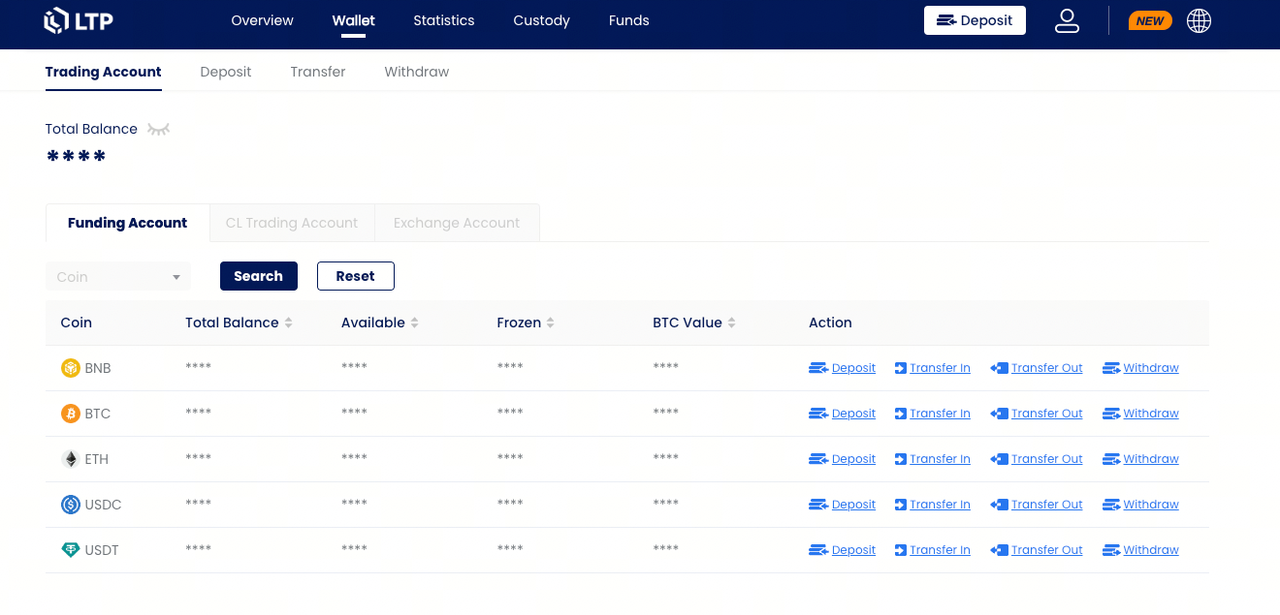
1.1 Funding Account
The Funding account is the master wallet where exchange-agnostic deposits are received. Users are able to transfer assets between their funding account and exchange accounts, in addition to movements directly between exchange accounts.
1.2 CL Trading Account
LTP integrated with ClearLoop (based on Copper) to enhance fund security for clients while also improving the overall trading environment. CL trading account refers to the account where the assets are held in Copper and the asset balances can be easily checked here.
Users are able to transfer their assets between CL trading account and their exchanges accounts(only Binance account&, as well as withdraw to external addresses and funding account.
To utilise the Copper ClearLoop service, you need to initiate a transfer of your assets from your funding account or exchange sub-accounts to your CL trading account. Once is done, you can proceed to "lock" your assets from your CL trading account onto your desired exchange.
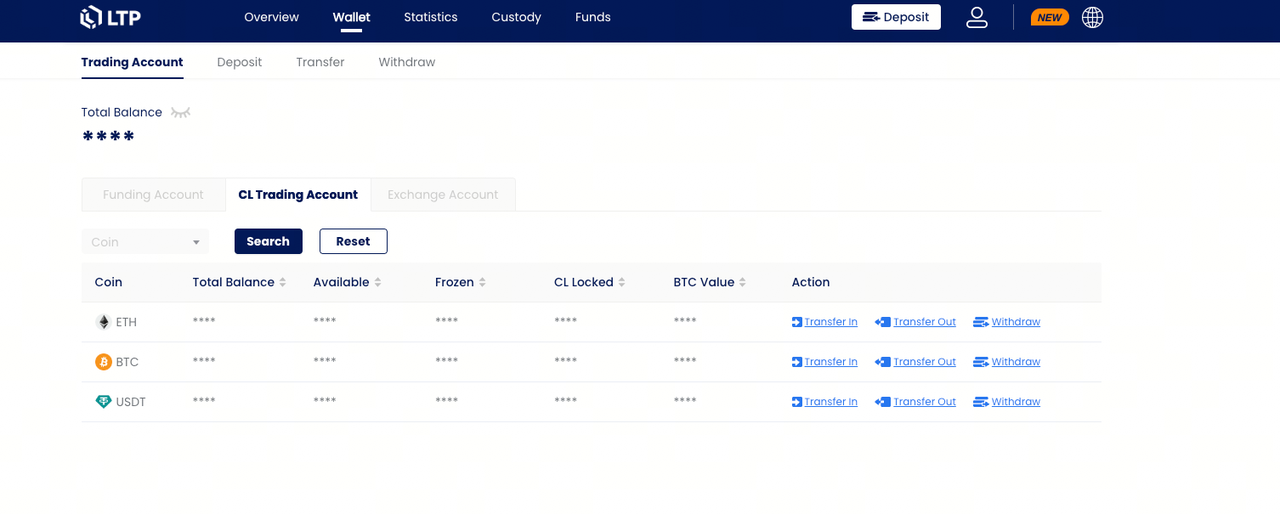
ClearLoop only supports locking BTC, ETH, and USDT so far. However, there are no restrictions on the trading types or trading pairs on the exchange side. You can trade any pair supported by the exchange.
The first venue on ClearLoop that LTP integrates is OKX. Please note that for OKX settlement only supports BTC, ETH, and USDT. Other currencies will not participate in the settlement process. For instance, if you have SOL on your balance on the OKX exchange, due to the settlement mechanism between Copper and OKX, SOL will not be settled and can not proceed . If you wish to settle, you will need to convert it into BTC, ETH, or USDT.
Should you want to get more information about or open a Copper CL trading account, please contact your account manager.
1.3 Exchange Account
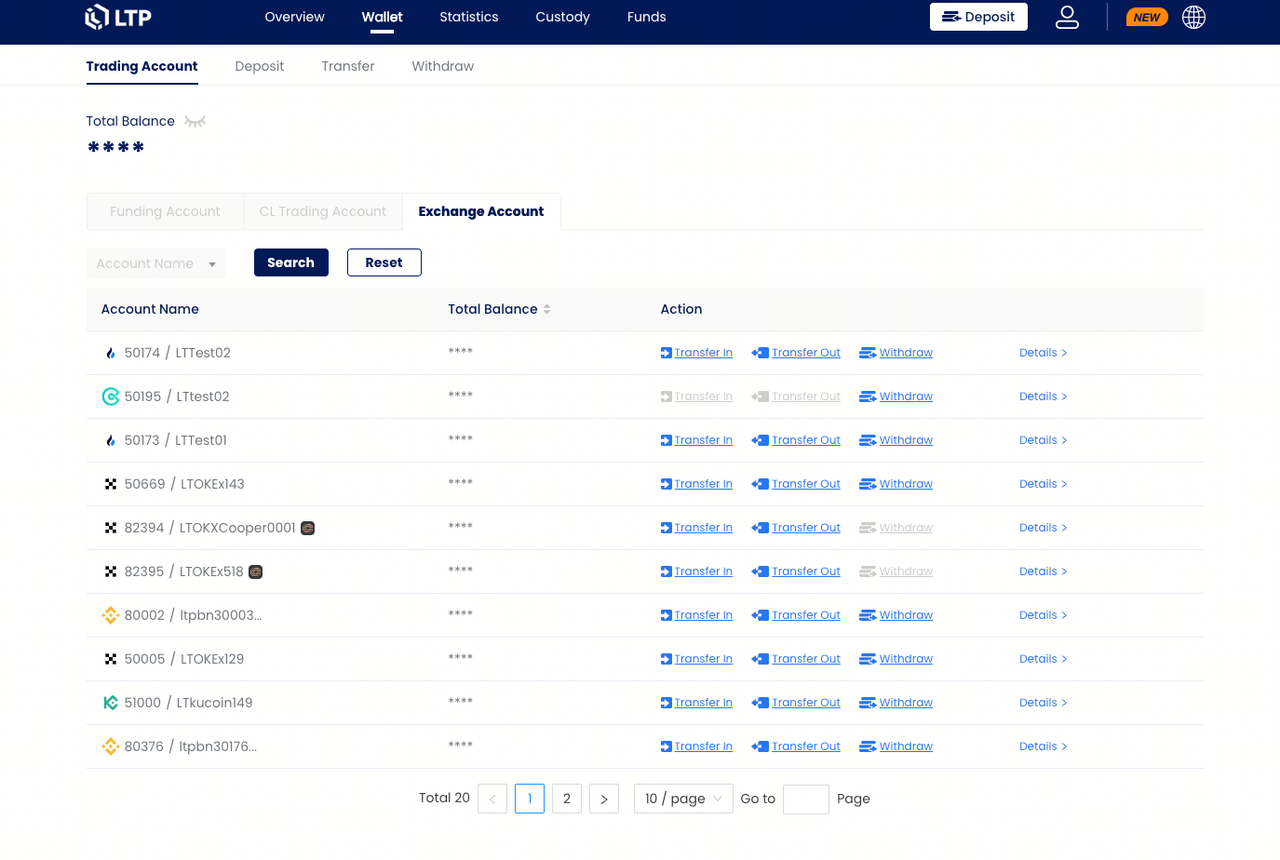
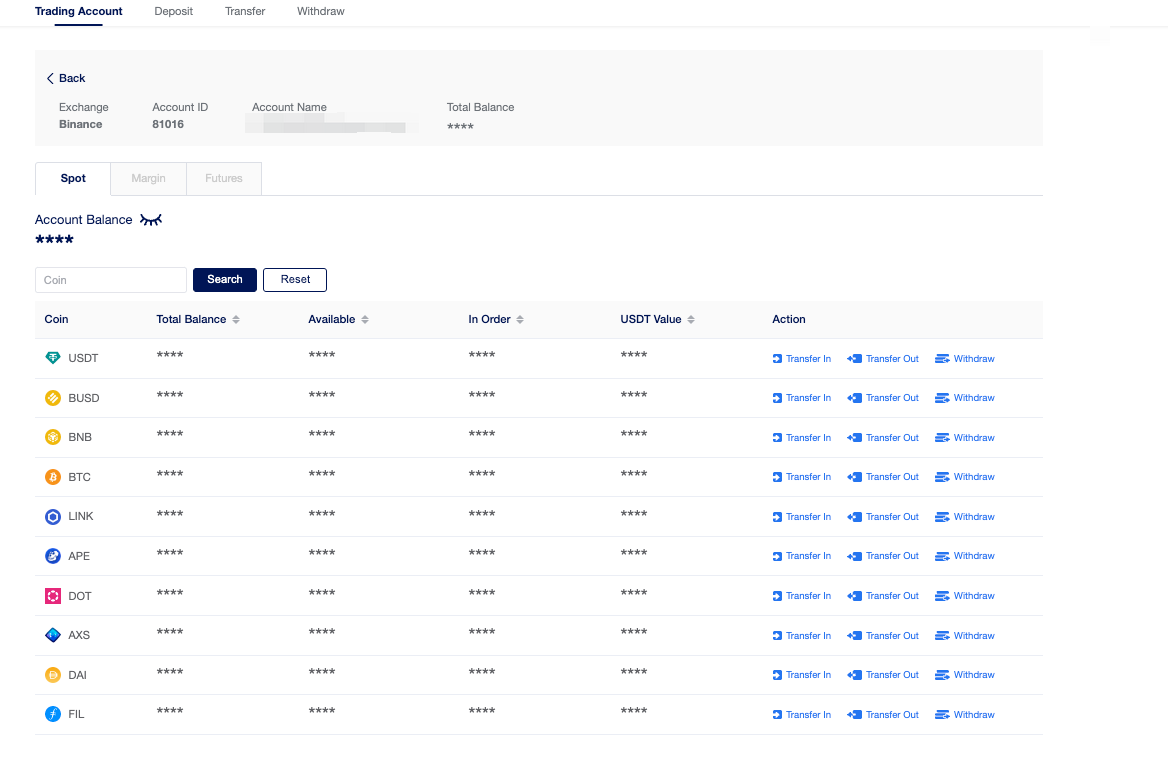
You can view all DMA exchange account details here and move assets using the 'Transfer In', 'Transfer Out', and 'Withdraw' buttons.
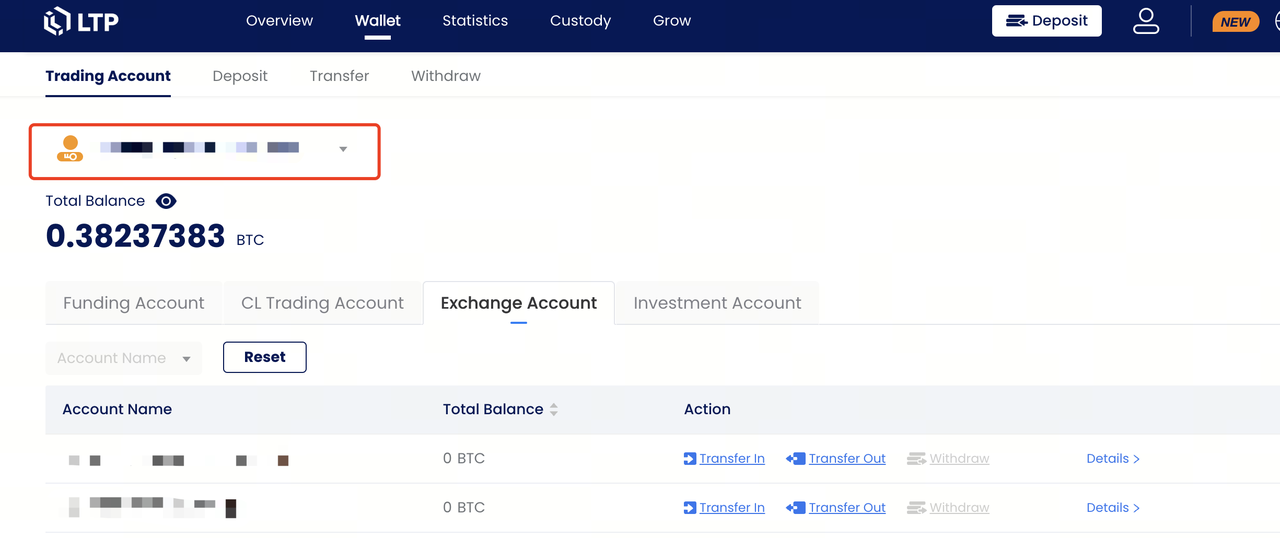
Primary-user can filter users to view and operate exchange accounts.
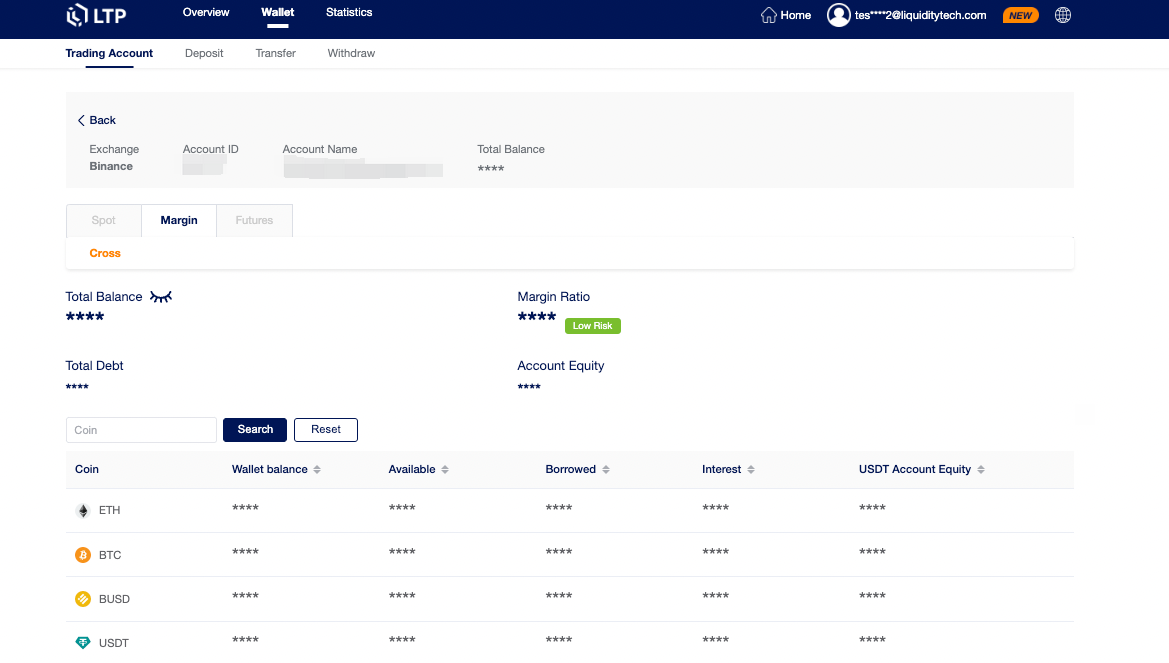
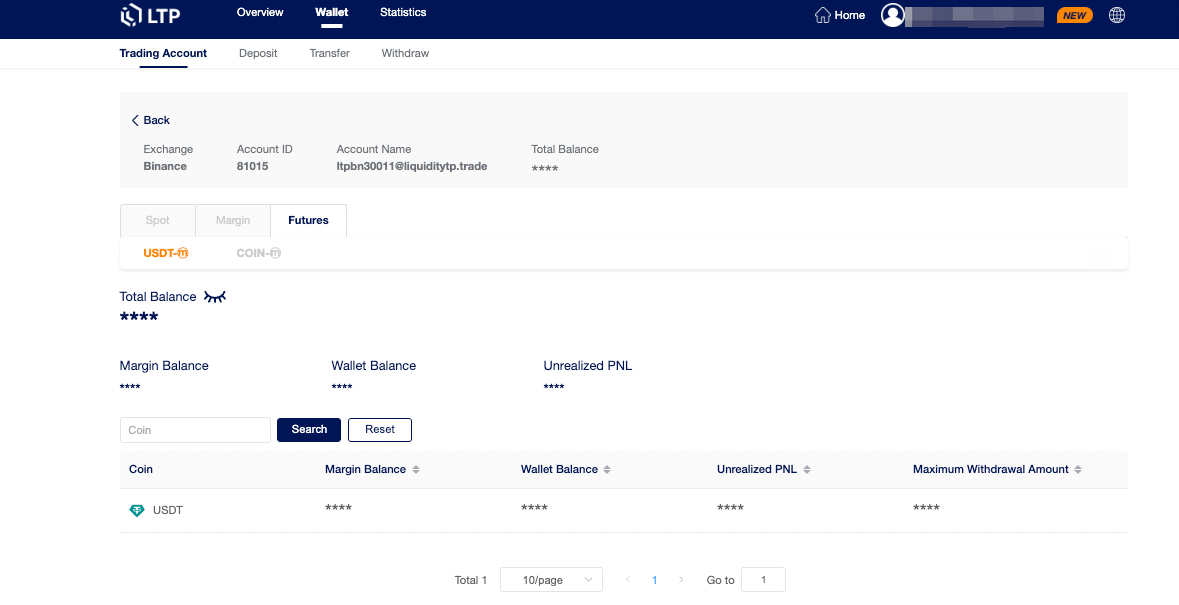
You can explore the detailed information of your exchange account, including spot, margin, and futures account details, by clicking on the 'Details' option. This will provide you with a comprehensive overview of your assets.
This will allow you to delve into the intricacies of your assets and explore the specific information associated with each account type.
1.3.1 Spot Account
1.3.2 Margin Account
1.3.3 Futures account
2. Deposit
To make a deposit, please navigate to Wallet -> Deposit and follow the instructions provided. You will receive your deposits in your Funding Account.
The Funding Account is the default destination for all deposits, and the only deposit address for exchanges that do not have a function to deposit directly to sub accounts.
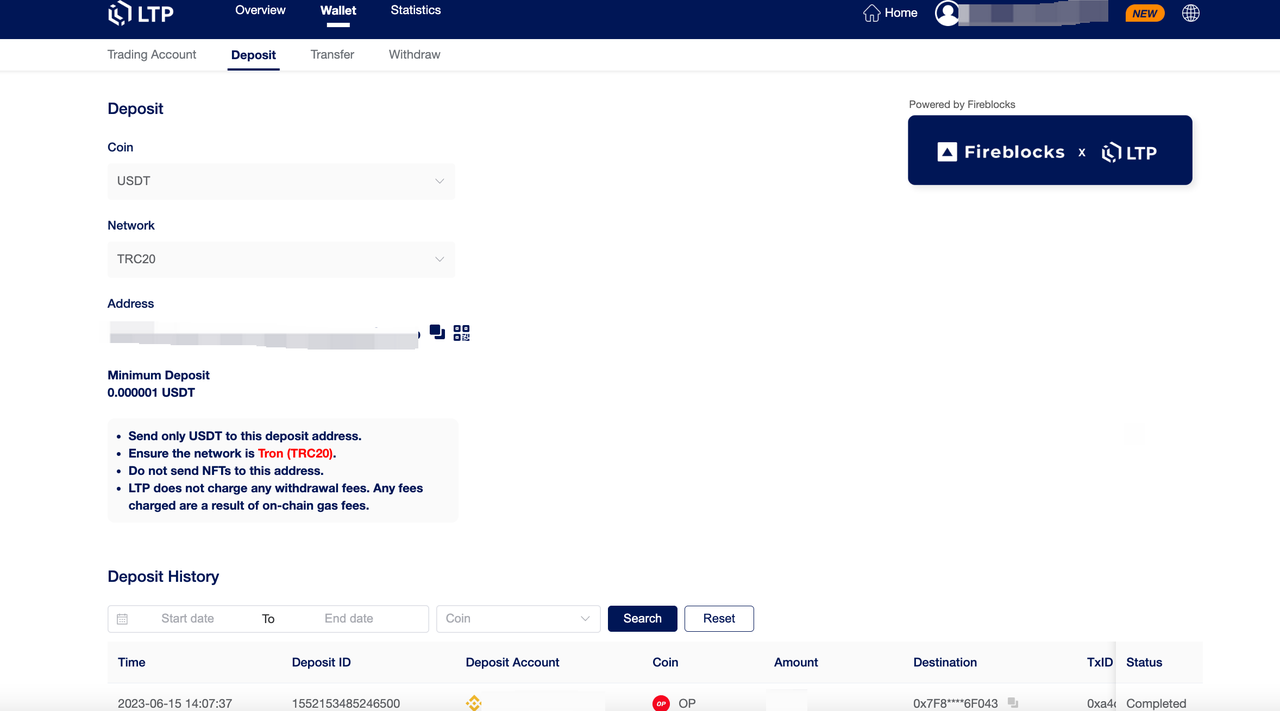
When depositing, please select the appropriate coin and network carefully. Ensure that the selected network matches the platform from which you are withdrawing funds. Choosing the wrong network could result in loss of funds.The following assets & networks are available for deposit:
- BTC: on the Bitcoin network
- ETH: ERC-20 on the Ethereum network
- BNB: BEP-20 on the BNB Smart Chain (BSC)
- USDT: TRC-20 (Tron) / ERC-20 (Ethereum) / BEP-20 (BSC)
- USDC: TRC-20 (Tron) / ERC-20 (Ethereum) / BEP-20 (BSC)
After confirming the deposit request, the deposit will be processed and the funds will be credited to your funding account shortly thereafter.
3. Transfer
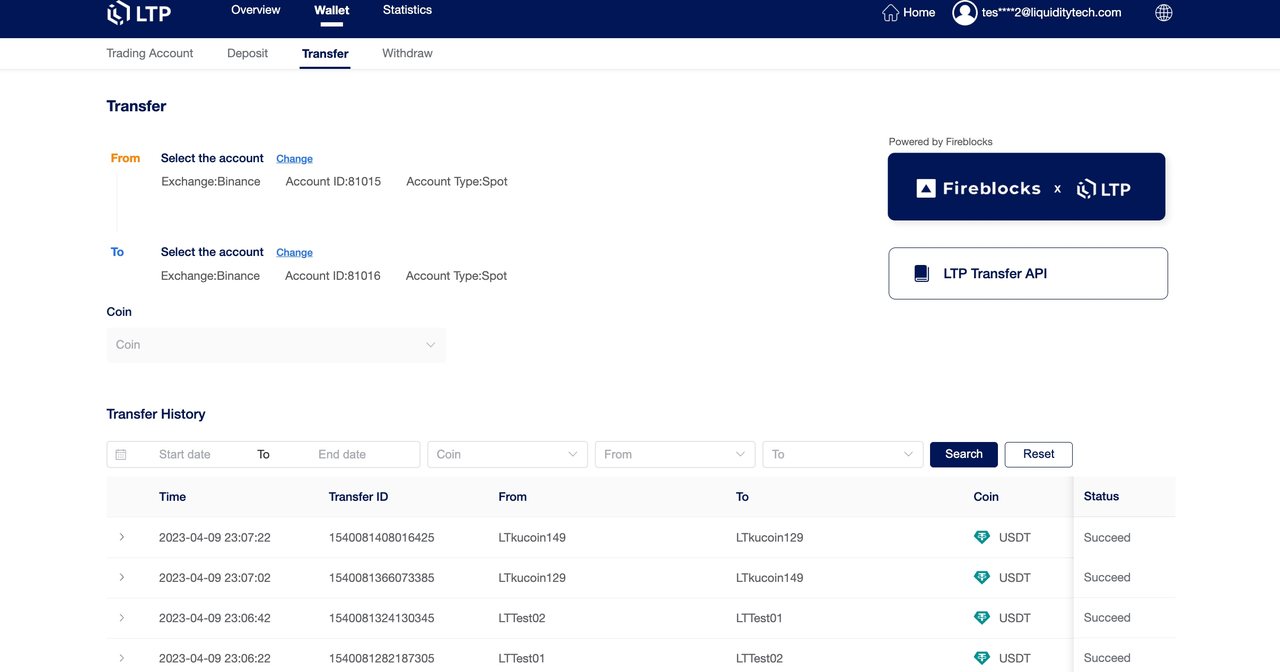
Transfers are allowed among the exchange accounts, CL trading account and LTP Funding Account. LTP supports two transfer methods. Please follow the instructions on the web UI to complete your asset transfer.
3.1 Transfer from Funding Account to Exchange Account & CL Trading Account
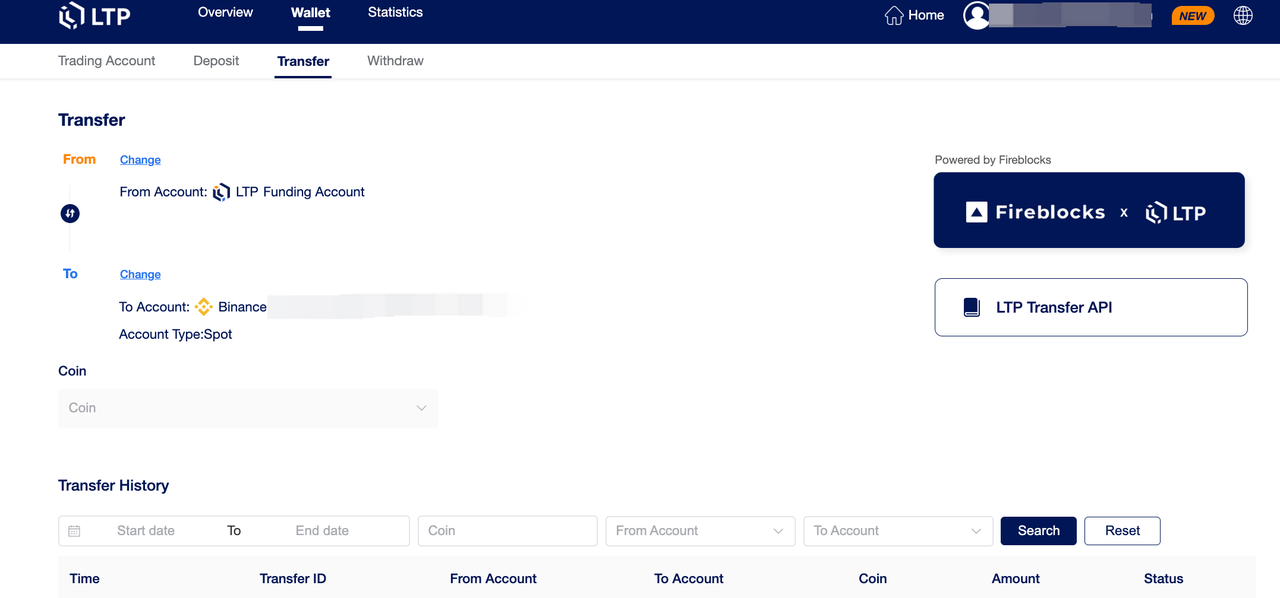
Attention: Assets in the CL trading account can be withdrawn and transferred to other exchanges and funding accounts. Assets that are currently "locked" within exchanges can only be unlocked and transferred specifically to the CL trading account, and can not be transferred directly to other accounts.
Regarding Lock and Unlock module, please refer to section 4.4 "Custody -> Lock and Unlock" for more information.
3.2 Cross/Inner Exchange Account Transfer
4. Add withdrawal wallet address
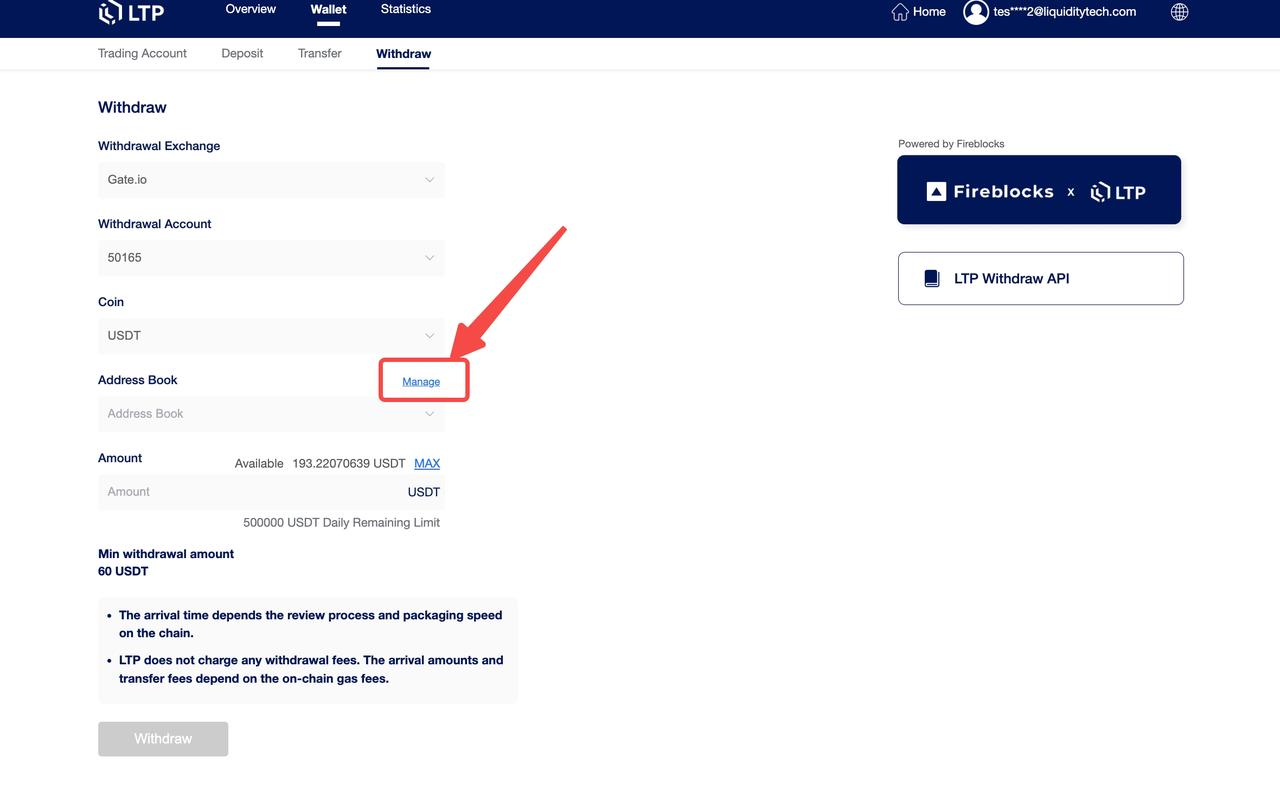
Open Wallet -> Withdraw and click 'Manage' to Withdraw Address Management.
Click 'Add Address'.
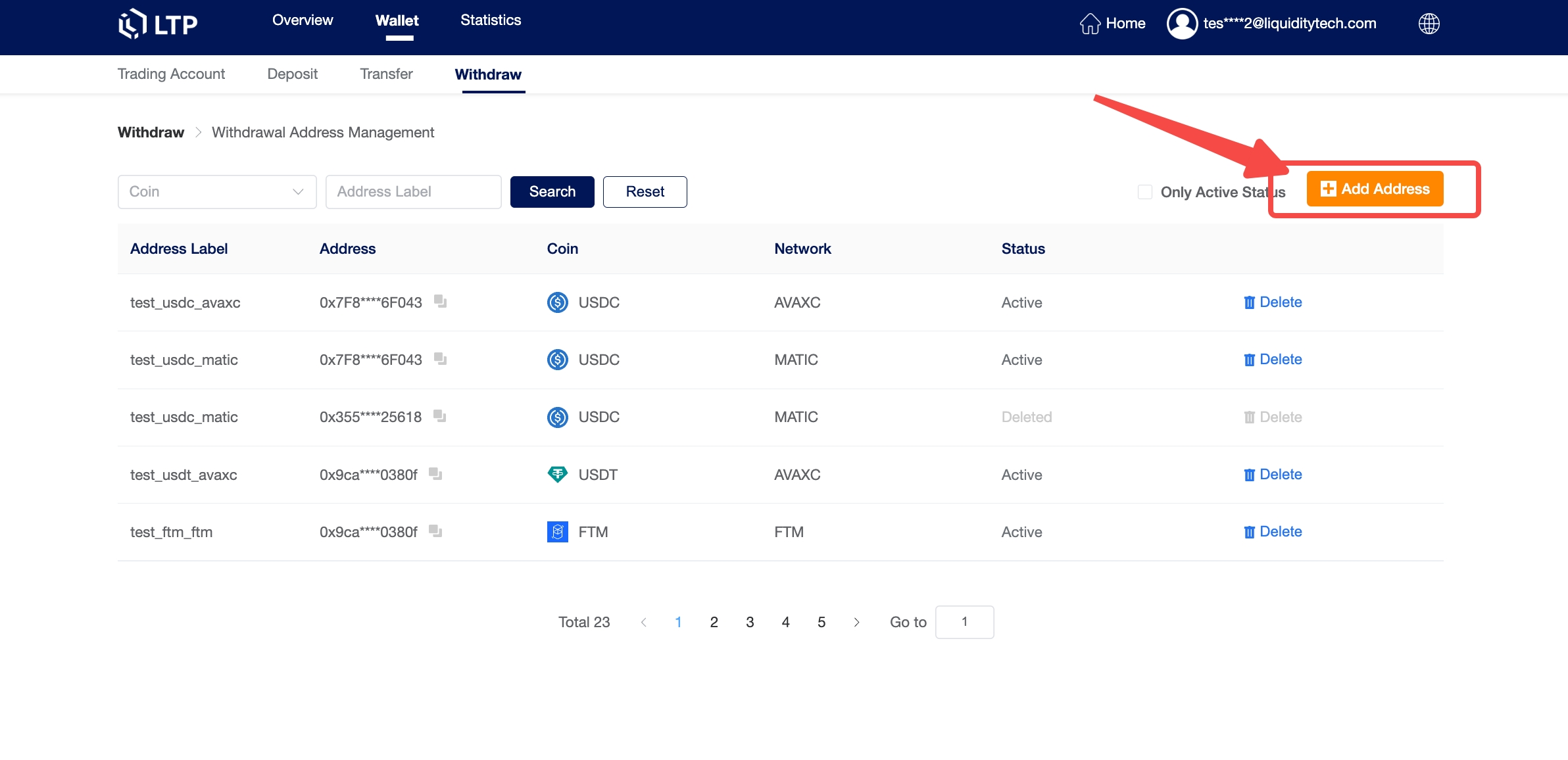
First, select the coin and network. Next, enter a label for the address and paste the address.
An address label is a custom name that you can assign to each withdrawal address for your own reference.
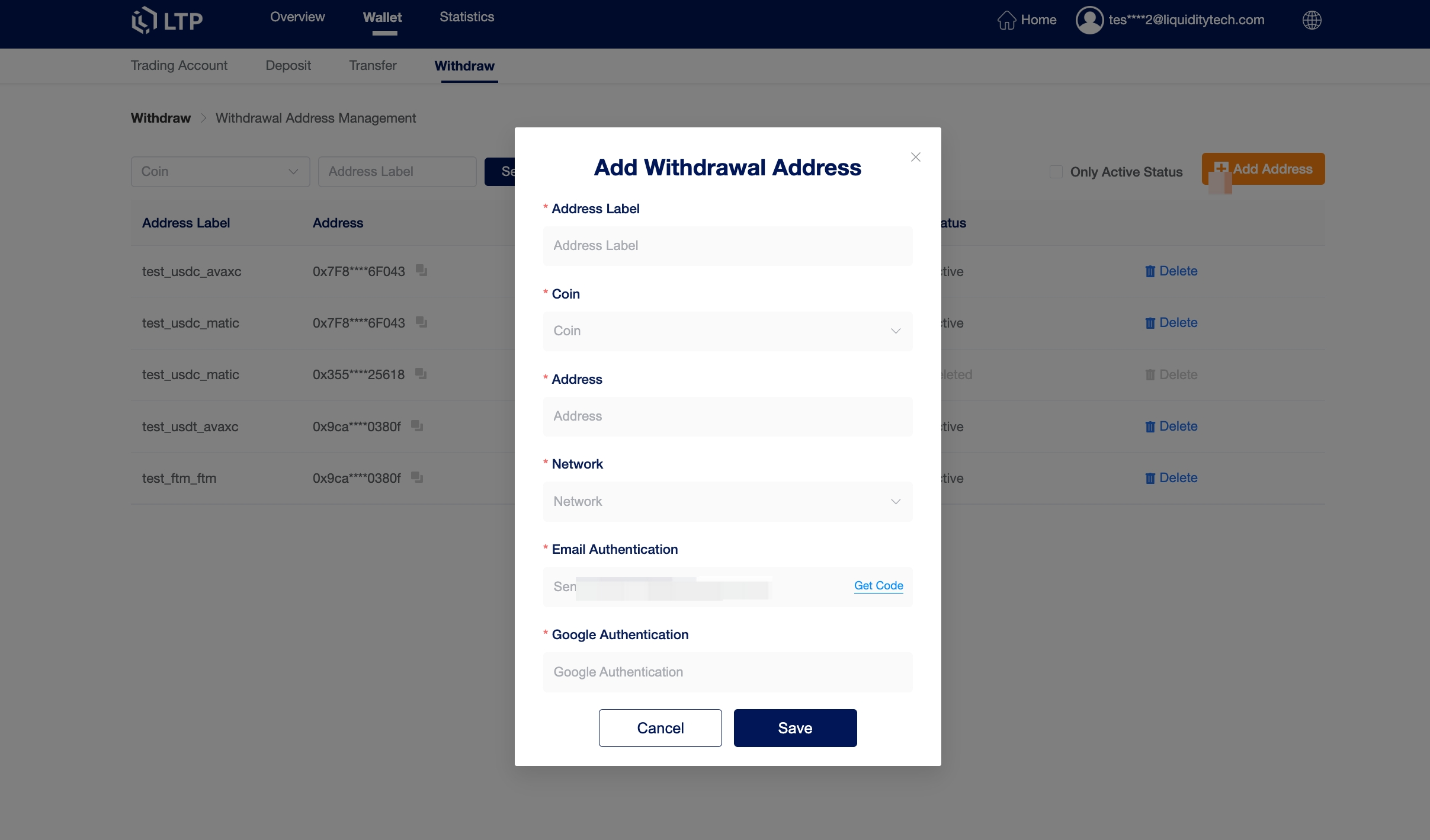
Please note that as a security measure, all new withdrawal addresses are reviewed manually by LTP's security team and confirmed with an account administrator.
Typically the process should take less than 24 hours depending on the time the request is submitted, and the added address will be available after review. If you have any further questions or concerns, please contact your account manager.
Sub-users cannot operate the withdrawal address, they can only select the whitelist address added by the primary-user.
5. Withdraw
To withdraw funds, navigate to Wallet -> Withdraw and select the account and coin you wish to withdraw. Withdrawals are available from both the Funding Account and Exchange Accounts.
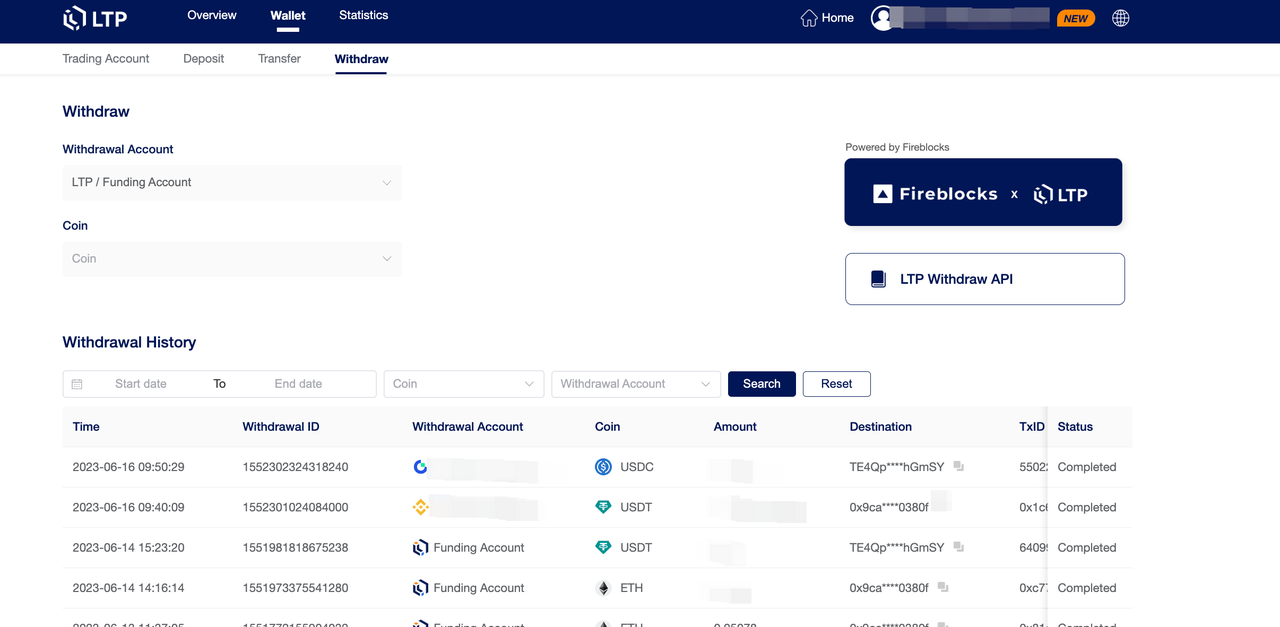
Next, enter the recipient address or select from your address book list.
Enter the withdrawal amount and you will be able to see the corresponding transaction fee and the final amount you receive. Click [Withdraw] to proceed.
You need to verify the transaction. Please follow the instructions.
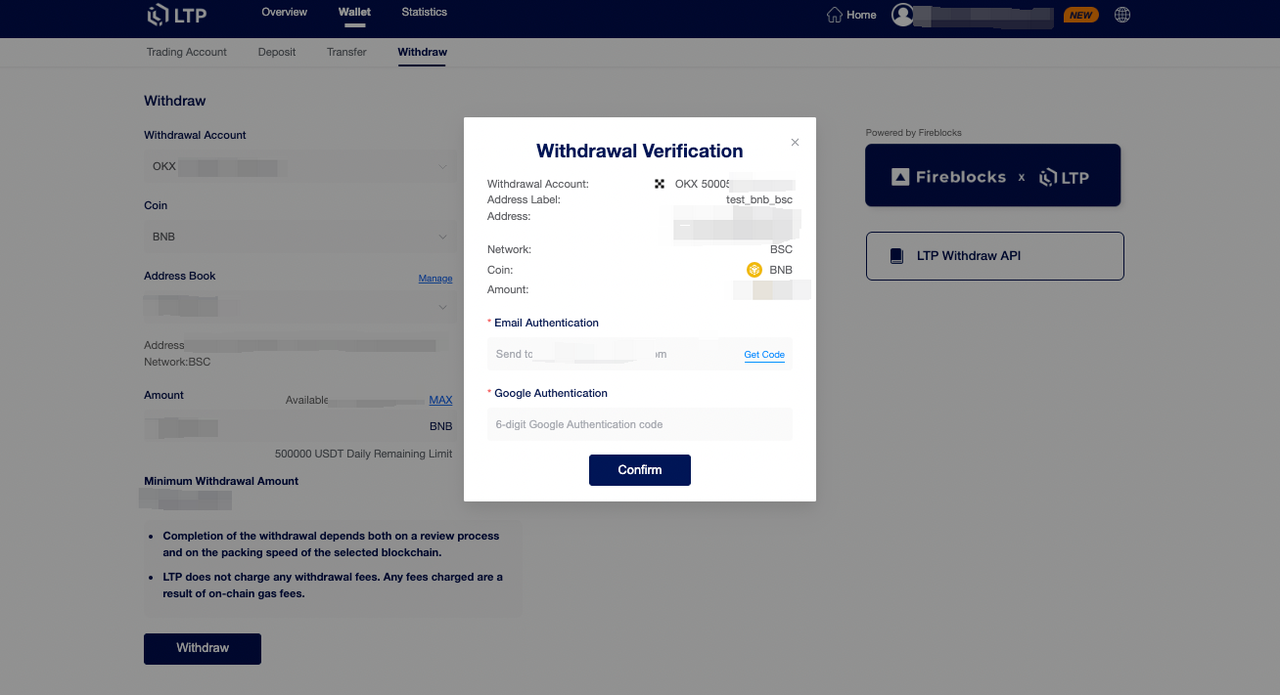
Warning: If incorrect information is entered, or the wrong network is selected when making a transfer, assets will be permanently lost. Please, make sure that the information is correct before making a transfer.
Like adding new withdrawal addresses to the address book, each withdrawal request is also reviewed manually and confirmed individually with an account administrator as a security measure. This can take up to 24 hours depending on the time that the request is submitted.
If you would prefer that withdrawals to whitelisted addresses be automatically approved, please notify your LTP account manager.